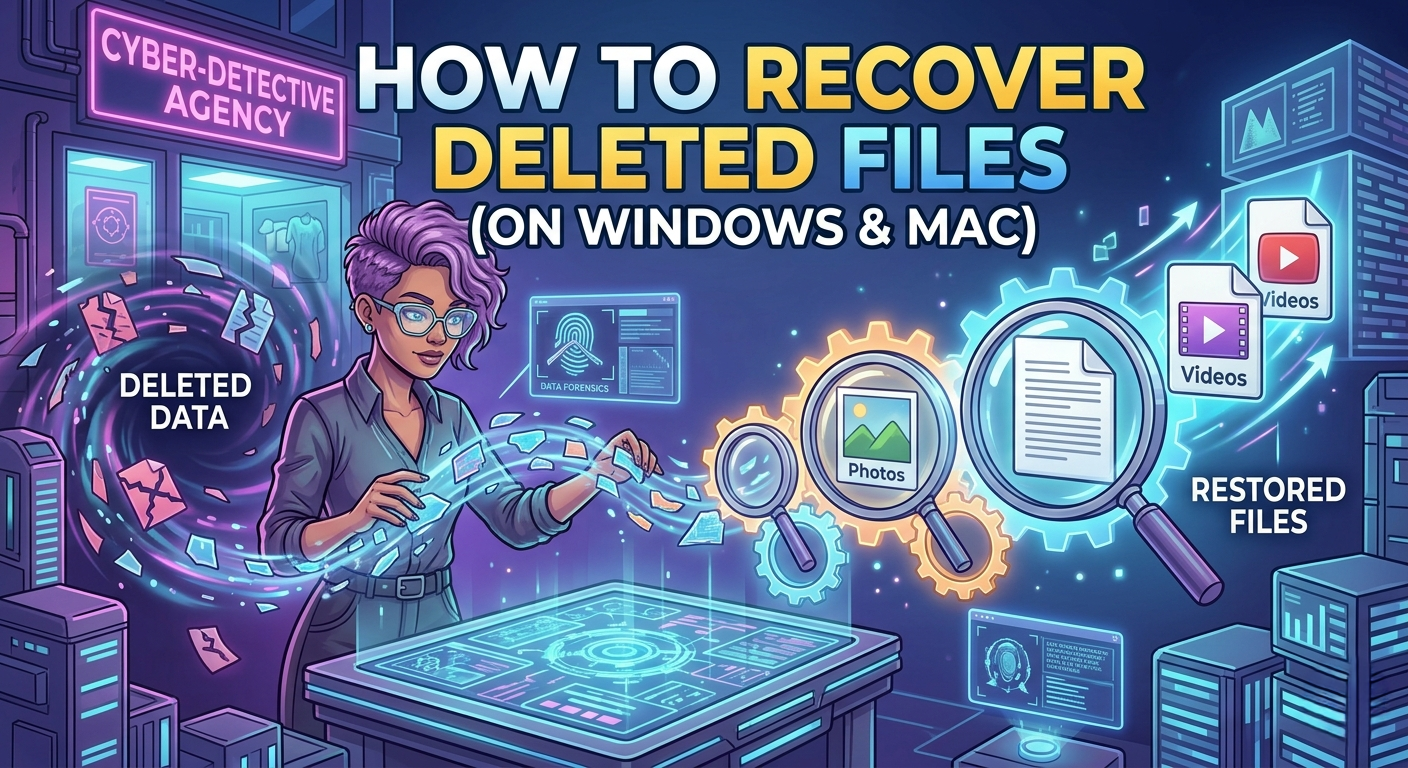
Accidentally deleting an important file can be a stressful experience. Whether it’s a work document, family photo, important presentation, or personal video, losing data can happen to anyone. Fortunately, deleting a file doesn’t always mean it’s gone forever.
Both Windows and macOS include built-in recovery options, and there are several trusted recovery methods that can help restore deleted files. The most important thing is to act quickly before the deleted data is overwritten.
This guide explains the safest and most effective ways to recover deleted files on Windows and Mac.
Can Deleted Files Really Be Recovered?
In many cases, yes.
When you delete a file, the operating system usually removes its reference from the file system instead of immediately erasing the actual data. The storage space is marked as available for new files.
Until that space is overwritten, recovery is often possible.
Your Recovery Chances Increase If:
- You stop using the affected drive immediately.
- You haven’t installed new software.
- You haven’t copied large files to the drive.
- You attempt recovery as soon as possible.
How to Recover Deleted Files on Windows
1. Check the Recycle Bin
The Recycle Bin is the first place to look.
Steps
- Open Recycle Bin.
- Locate the deleted file.
- Right-click the file.
- Select Restore.
The file will return to its original location.
2. Restore Previous Versions
Windows automatically creates restore points and file history snapshots if enabled.
Steps
- Open the folder where the file was stored.
- Right-click the folder.
- Select Properties.
- Open the Previous Versions tab.
- Choose an available version.
- Click Restore.
3. Recover Files Using File History
If File History was enabled before the deletion, recovery is straightforward.
Steps
- Open Control Panel.
- Select File History.
- Click Restore Personal Files.
- Browse to the missing file.
- Click Restore.
This method is especially useful for recovering documents, photos, and desktop files.
4. Restore from Windows Backup
If you created a full system backup:
Steps
- Open Control Panel.
- Select Backup and Restore.
- Click Restore My Files.
- Follow the recovery wizard.
5. Use Windows File Recovery
Windows offers a command-line recovery utility for advanced users.
It Can Recover:
- Documents
- Photos
- Videos
- PDF files
- Deleted folders
This tool works best when used immediately after deletion.
6. Use Trusted Data Recovery Software
If built-in tools cannot recover your files, data recovery software may help.
Popular Recovery Programs
- Recuva
- Disk Drill
- EaseUS Data Recovery Wizard
- Stellar Data Recovery
Tips
- Install recovery software on a different drive.
- Avoid writing new data to the affected disk.
- Recover files to another storage device whenever possible.
How to Recover Deleted Files on Mac
1. Check the Trash
Deleted files usually remain in the Trash until it’s emptied.
Steps
- Open Trash.
- Locate the deleted file.
- Right-click it.
- Select Put Back.
The file returns to its original folder.
2. Restore Using Time Machine
Time Machine is macOS’s built-in backup system.
Steps
- Connect your backup drive.
- Open Time Machine.
- Navigate to the folder containing the deleted file.
- Browse previous backups.
- Select the file.
- Click Restore.
This is one of the most reliable recovery methods for Mac users.
3. Recover Files from iCloud Drive
If your files were stored in iCloud:
Steps
- Sign in to your iCloud account.
- Open Drive.
- Check the Recently Deleted section.
- Restore the required files.
Files remain available for a limited period before permanent deletion.
4. Check App-Specific Recovery Folders
Some Mac applications keep deleted items temporarily.
Examples
- Photos
- Notes
- Files
Check each application’s “Recently Deleted” section.
5. Use Data Recovery Software for Mac
If no backup exists, recovery software may still recover deleted files.
Popular Options
- Disk Drill
- EaseUS Data Recovery Wizard
- Stellar Data Recovery
Always recover files to another storage device to prevent overwriting.
What to Do Immediately After Accidentally Deleting Files
Quick action greatly improves recovery success.
Do This:
- Stop using the affected drive.
- Avoid installing new applications.
- Don’t save new files to the same disk.
- Begin recovery as soon as possible.
- Recover files to another storage device.
These steps reduce the chance of deleted data being overwritten.
Common Reasons Files Get Deleted
Files can disappear for many reasons.
Common Causes
- Accidental deletion
- Emptying the Recycle Bin or Trash
- Formatting a drive
- Operating system crashes
- Malware attacks
- Hard drive corruption
- Failed software updates
- Power failures
- Human error
Understanding the cause helps you choose the best recovery method.
Tips to Prevent Future Data Loss
Preventing file loss is easier than recovering deleted data.
Best Practices
- Enable automatic backups.
- Use cloud storage services.
- Create regular system backups.
- Save important files in multiple locations.
- Install trusted antivirus software.
- Avoid deleting files without checking them carefully.
- Use an external backup drive for important documents.
Regular backups are the most effective protection against permanent data loss.
When Professional Recovery Is Needed
In some situations, software recovery is not enough.
Seek Professional Help If:
- The hard drive makes clicking noises.
- The SSD or HDD is physically damaged.
- The drive is not detected by the computer.
- Important business or personal data is involved.
- Recovery software cannot detect the drive.
Avoid opening damaged drives yourself, as this can make recovery more difficult.
Frequently Asked Questions
Can permanently deleted files be recovered?
Yes. If the storage space has not been overwritten, permanently deleted files can often be recovered using built-in recovery tools or data recovery software.
Does formatting a drive permanently erase data?
Not always. A quick format usually removes file references rather than the actual data, making recovery possible until new data is written.
Is recovery software safe?
Yes, provided you download it from a trusted source. Always install recovery software on a different drive than the one you’re trying to recover.
Can SSDs recover deleted files?
Recovery from SSDs may be more difficult because many SSDs use the TRIM feature, which can permanently remove deleted data to improve performance. Recovery is still possible in some cases, especially if TRIM has not yet processed the deleted data.
Conclusion
Accidentally deleting important files doesn’t always mean they’re lost forever. Windows and macOS provide several built-in recovery options, including the Recycle Bin, Trash, File History, Previous Versions, and Time Machine. When those methods don’t work, trusted data recovery software can often restore lost files. Acting quickly, avoiding further use of the affected drive, and maintaining regular backups are the best ways to maximize recovery success and protect your valuable data.