
Technology is meant to make life easier, yet many people spend unnecessary time searching for files, repeating tasks, troubleshooting common issues, or navigating through complicated menus. Learning a few simple tech tips can help you work more efficiently, stay organized, and reduce daily frustration.
Whether you’re a student, office worker, freelancer, or business owner, these practical tips can save you valuable time every single day.
In this guide, you’ll discover 25 useful tech tips that improve productivity, organization, and digital efficiency.
Why Time-Saving Tech Tips Matter
Using technology efficiently helps you:
- Complete tasks faster
- Improve productivity
- Reduce stress
- Stay organized
- Protect your data
- Minimize technical problems
- Focus on more important work
Small improvements in your workflow can save hours over time.
25 Tech Tips That Save Time Every Day
1. Learn Keyboard Shortcuts
Keyboard shortcuts are one of the fastest ways to work efficiently.
Useful shortcuts include:
- Ctrl + C – Copy
- Ctrl + V – Paste
- Ctrl + X – Cut
- Ctrl + Z – Undo
- Ctrl + S – Save
- Ctrl + F – Find
- Ctrl + T – Open a new browser tab
- Alt + Tab – Switch between open windows
- Win + L – Lock your Windows PC
Learning just a few shortcuts can significantly reduce the time spent navigating menus.
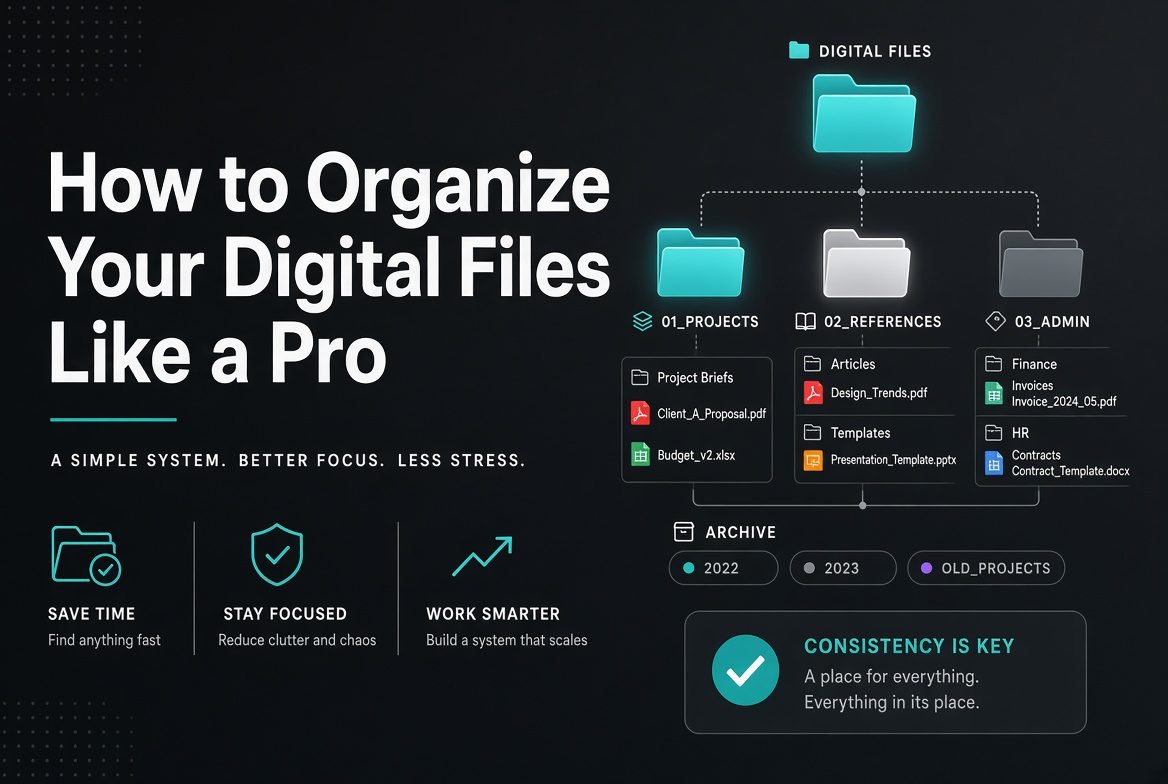
2. Organize Your Files
Keep documents inside clearly named folders instead of saving everything on your desktop.
A simple folder structure makes files easier to locate.
3. Use Cloud Storage
Store important files in cloud services to:
- Access them from multiple devices
- Share files easily
- Protect against data loss
Cloud storage also simplifies collaboration.
4. Pin Frequently Used Apps
Pin your most-used applications to the taskbar, dock, or start menu for one-click access.
5. Use Password Managers
Instead of remembering dozens of passwords, use a trusted password manager to:
- Generate strong passwords
- Store them securely
- Autofill login forms
6. Enable Automatic Updates
Keeping your operating system and apps updated helps improve:
- Security
- Stability
- Performance
Automatic updates also reduce manual maintenance.
7. Keep Your Desktop Clean
Too many icons create unnecessary clutter.
Keep only:
- Current projects
- Frequently used shortcuts
- Essential folders
8. Search Instead of Browsing
Use your operating system’s search feature to locate files quickly instead of opening multiple folders.
Search is usually much faster than manual browsing.
9. Close Unused Browser Tabs
Having dozens of tabs open can:
- Slow your browser
- Consume memory
- Make it difficult to find important pages
Bookmark pages you’ll need later instead.
10. Use Browser Bookmarks
Organize bookmarks into folders such as:
- Work
- Study
- Shopping
- Research
- Personal
This saves time when revisiting frequently used websites.
11. Uninstall Software You No Longer Use
Unused applications consume storage and may affect system performance.
Review installed software every few months.
12. Restart Your Computer Regularly
Restarting clears temporary processes and can resolve minor performance issues.
A regular restart also helps after installing updates.
13. Keep Storage Space Available
A nearly full drive can slow your computer.
Delete unnecessary files and move large files to external or cloud storage when appropriate.
14. Back Up Important Files
Follow the 3-2-1 backup rule:
- Three copies of your data
- Two different storage types
- One off-site backup
Regular backups reduce the risk of permanent data loss.
15. Use Multiple Browser Profiles
Separate profiles for:
- Personal browsing
- Work
- School
- Business
This keeps bookmarks, history, and extensions organized.
16. Enable Two-Factor Authentication (2FA)
Protect important accounts with an extra layer of security.
Even if someone learns your password, 2FA makes unauthorized access much more difficult.
17. Learn Basic Troubleshooting
Know how to fix common issues such as:
- Slow computers
- Wi-Fi problems
- Frozen applications
- Printer issues
- App crashes
Basic troubleshooting can save both time and money.
18. Rename Files Properly
Instead of:
- Document1.docx
- New File.pdf
Use descriptive names such as:
- Client-Contract-June-2026.pdf
- Marketing-Report-Q2.docx
Clear file names make searching much easier.
19. Use Notes Apps
Keep important information in one place:
- To-do lists
- Meeting notes
- Password hints (never actual passwords)
- Ideas
- Shopping lists
A notes app helps reduce clutter and improves organization.
20. Schedule Automatic Backups
Automating backups means you don’t have to remember to copy important files manually.
21. Declutter Your Downloads Folder
The Downloads folder fills up quickly.
Every few weeks:
- Delete unnecessary files.
- Move important documents to permanent folders.
- Remove duplicate downloads.
22. Silence Unnecessary Notifications
Constant notifications interrupt your focus.
Disable alerts from apps that aren’t important so you can concentrate on your work.
23. Keep Your Browser Updated
Modern browser updates improve:
- Security
- Speed
- Compatibility
- Stability
Using the latest version helps you browse more safely.
24. Scan for Malware Regularly
Use trusted security software to perform periodic scans and keep your operating system up to date.
Routine scans help identify threats before they cause problems.
25. Continue Learning New Technology
Technology changes quickly.
Spend a little time each month learning:
- New software features
- Productivity shortcuts
- AI tools
- Security best practices
Continuous learning helps you work smarter.
Daily Habits That Improve Productivity
Develop these simple habits:
- Restart your computer when needed.
- Organize files before ending your workday.
- Back up important documents regularly.
- Keep software updated.
- Close unused applications.
- Delete unnecessary downloads.
- Review your to-do list each morning.
Small daily habits often lead to significant long-term improvements.
Common Technology Mistakes to Avoid
Avoid these common mistakes:
- Using weak passwords.
- Saving everything on the desktop.
- Ignoring software updates.
- Never backing up important files.
- Downloading software from unknown websites.
- Keeping hundreds of browser tabs open.
- Allowing storage to become completely full.
Correcting these habits improves both productivity and security.
Benefits of Following These Tech Tips
Applying these techniques can help you:
- Save time every day.
- Improve computer performance.
- Stay organized.
- Increase productivity.
- Protect your personal data.
- Reduce technical problems.
- Build better digital habits.
Even a few of these tips can make your daily workflow noticeably smoother.
Frequently Asked Questions
What are the easiest tech tips that save time?
Learning keyboard shortcuts, organizing files, using cloud storage, pinning frequently used apps, and keeping your software updated are among the easiest and most effective time-saving habits.
How can I make my computer work faster?
Free up storage space, uninstall unused software, restart your computer regularly, limit startup programs, and keep your operating system updated.
Are keyboard shortcuts really worth learning?
Yes. Frequently used shortcuts can save seconds on every task, which adds up to hours over weeks and months of regular computer use.
How often should I organize my computer?
A quick cleanup once a month is enough for most users. Regular maintenance prevents clutter and keeps your computer running efficiently.
Conclusion
The best technology tips are often the simplest ones. Organizing your files, mastering keyboard shortcuts, maintaining regular backups, keeping your software updated, and using built-in productivity features can save you time every day while making your devices more secure and efficient. By adopting these habits consistently, you’ll spend less time solving technical problems and more time focusing on what matters most.