
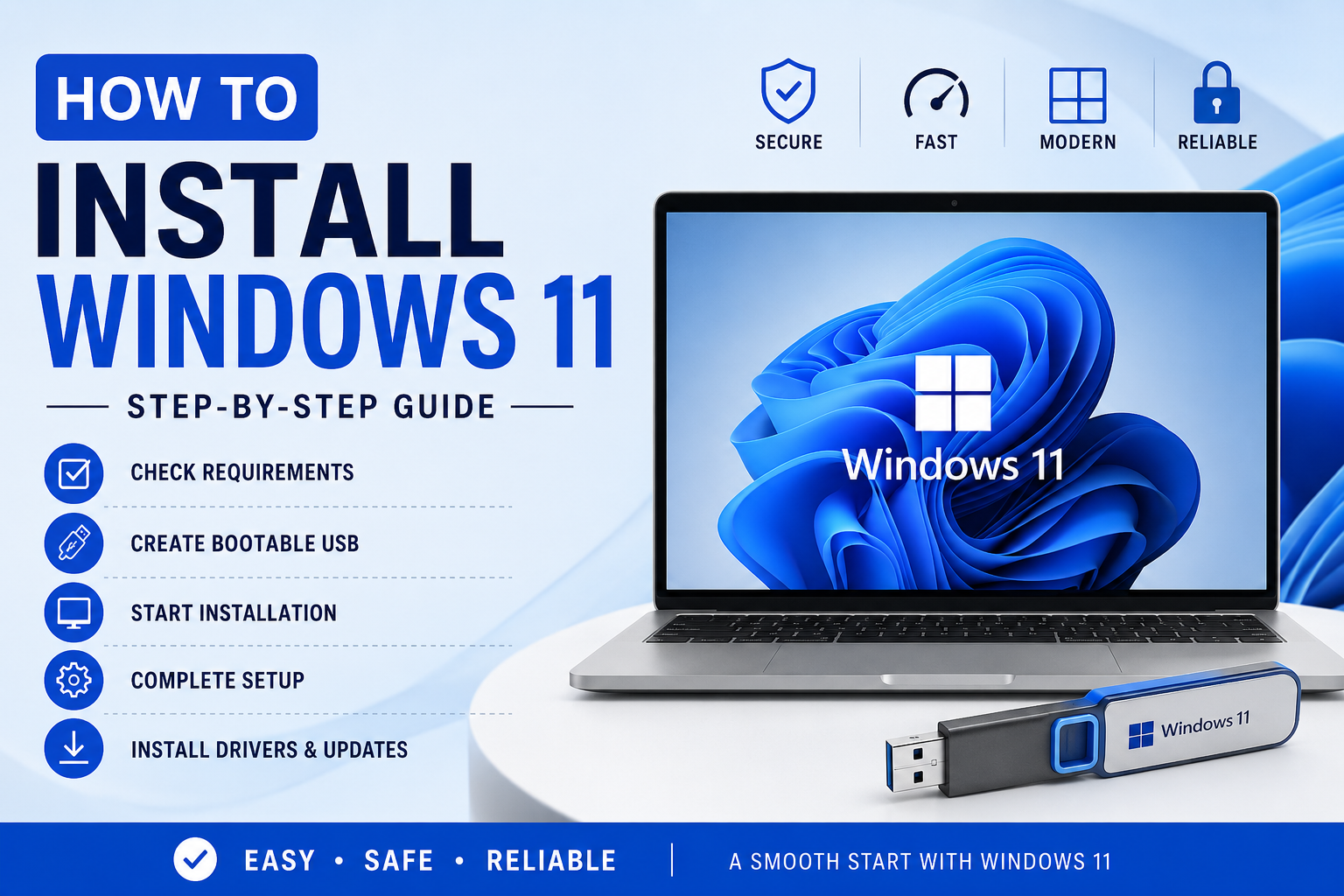
Installing Windows 11 is simple when you follow the right steps. Whether you are upgrading from an older version of Windows or doing a fresh installation, this guide will help you install Windows 11 smoothly and safely.
Check System Requirements
Before installing Windows 11, make sure your computer meets these basic requirements:
- 64-bit processor
- 4 GB RAM or more
- 64 GB storage
- TPM 2.0 support
- Secure Boot enabled
- Internet connection for setup
You can use the PC Health Check tool from Microsoft to confirm compatibility.
Backup Your Important Files
Before starting the installation, save your important files to:
- External hard drive
- USB drive
- Cloud storage
This helps protect your data if anything goes wrong during installation.
Create a Bootable USB Drive
To install Windows 11, you need a USB drive with at least 8 GB of space.
Steps:
- Download the Windows 11 Media Creation Tool from Microsoft Windows 11 Download Page
- Insert your USB drive.
- Run the tool and choose Create Installation Media.
- Follow the instructions to create the bootable USB.
Start the Installation Process
- Insert the bootable USB into your computer.
- Restart the PC.
- Open the Boot Menu by pressing keys like F12, ESC, or DEL during startup.
- Select the USB drive to boot from.
The Windows 11 setup screen will appear.
Install Windows 11
Follow these installation steps carefully:
- Choose your language and keyboard layout.
- Click Install Now.
- Enter your product key or select I don’t have a product key.
- Choose the Windows 11 edition.
- Accept the license terms.
- Select:
- Upgrade for updating an existing system
- Custom Install for a fresh installation
- Select the drive where Windows will be installed.
- Click Next.
The installation process may take several minutes, and your computer will restart multiple times.
Complete the Setup
After installation:
- Connect to Wi-Fi
- Sign in with your Microsoft account
- Set privacy options
- Create a PIN
- Customize settings
Once finished, Windows 11 will load to the desktop.
Install Drivers and Updates
After setup, check for updates:
- Open Settings
- Go to Windows Update
- Click Check for Updates
Install all available updates and drivers for better performance and security.
Final Thoughts
Installing Windows 11 is easier than many people think. With the right preparation and a bootable USB drive, you can complete the installation in a short time. Always back up your data and follow each step carefully for a smooth experience.