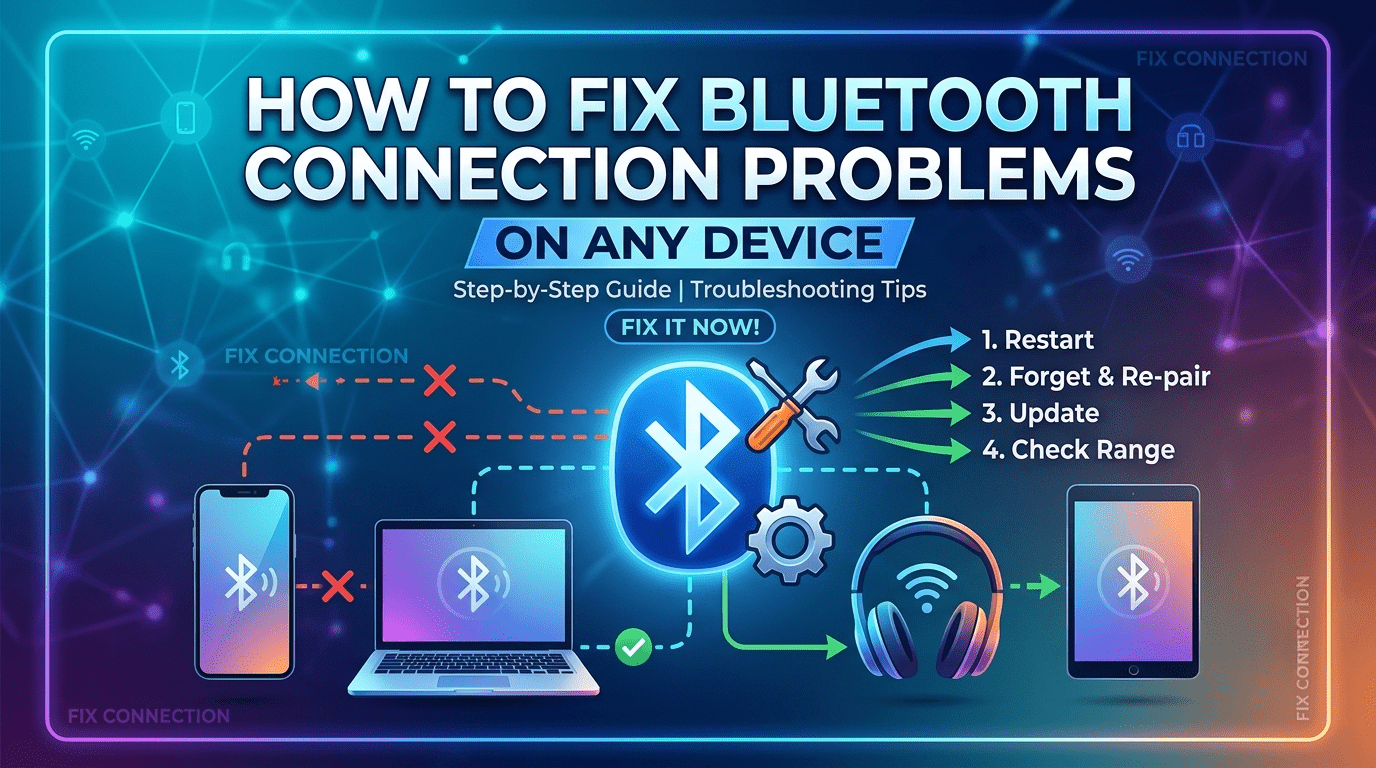
Bluetooth technology makes it easy to connect wireless devices such as headphones, keyboards, speakers, mice, smartwatches, and smartphones. However, Bluetooth connection problems are common and can be frustrating when devices fail to pair, disconnect unexpectedly, or cannot be detected.
Fortunately, most Bluetooth issues can be fixed with simple troubleshooting steps. Whether you’re using a Windows PC, Mac, Android phone, iPhone, or other Bluetooth-enabled device, this guide will help you identify the cause and restore a stable connection.
Common Bluetooth Problems
Bluetooth issues can appear in different ways.
Common Symptoms
- Bluetooth won’t turn on
- Devices won’t pair
- Device is not discoverable
- Frequent disconnections
- Audio cuts in and out
- Keyboard or mouse lag
- Bluetooth device connected but not working
- “Pairing Failed” error message
Understanding the symptom makes troubleshooting much easier.
1. Make Sure Bluetooth Is Enabled
The simplest solution is to confirm Bluetooth is turned on.
Check On:
- Windows
- macOS
- Android
- iPhone
- Tablets
Turn Bluetooth off, wait a few seconds, then turn it back on.
2. Restart Both Devices
Temporary software glitches often cause connection problems.
Restart:
- Smartphone
- Laptop
- Desktop computer
- Bluetooth headphones
- Speaker
- Smartwatch
After restarting, try pairing again.
3. Keep Devices Within Range
Bluetooth has a limited operating range.
Recommended Distance
- Approximately 10 meters (33 feet) for most devices
Walls, furniture, and electronic interference can reduce signal strength.
Move both devices closer together during pairing.
4. Remove and Pair the Device Again
Saved Bluetooth profiles can become corrupted.
Windows
- Open Settings
- Go to Bluetooth & Devices
- Select the connected device
- Click Remove Device
- Pair it again
Android & iPhone
- Open Bluetooth settings
- Tap the connected device
- Select Forget Device
- Pair again
This often resolves pairing issues.
5. Check Battery Levels
Low battery can affect Bluetooth performance.
Charge:
- Wireless headphones
- Speakers
- Keyboard
- Mouse
- Smartwatch
Many Bluetooth issues disappear after charging the device.
6. Turn Off Airplane Mode
Airplane Mode disables wireless communication on many devices.
Verify That:
- Airplane Mode is turned off
- Bluetooth is enabled afterward
7. Disconnect Other Connected Devices
Some Bluetooth accessories support only one active connection.
Example
A Bluetooth headset already connected to your phone may refuse to connect to your laptop.
Disconnect it from the first device before pairing with another.
8. Update Bluetooth Drivers (Windows)
Outdated drivers can cause pairing and connection failures.
Steps
- Open Device Manager
- Expand Bluetooth
- Right-click your Bluetooth adapter
- Select Update Driver
Restart your computer after updating.
9. Update Your Operating System
System updates often include Bluetooth bug fixes.
Windows
- Open Settings
- Go to Windows Update
- Install available updates
macOS
- Open System Settings
- Select Software Update
Android & iPhone
Install the latest available software update.
10. Restart the Bluetooth Service (Windows)
Windows Bluetooth services may stop unexpectedly.
Steps
- Press Windows + R
- Type services.msc
- Locate Bluetooth Support Service
- Restart the service
This refreshes Bluetooth functionality.
11. Remove Wireless Interference
Bluetooth operates on the 2.4 GHz frequency, which can be affected by other wireless devices.
Possible Sources of Interference
- Wi-Fi routers
- Microwave ovens
- Wireless keyboards
- Cordless phones
Move away from interference when pairing devices.
12. Reset Network and Bluetooth Settings
Corrupted settings may prevent Bluetooth from working properly.
Android
Settings → System → Reset → Reset Network Settings
iPhone
Settings → General → Transfer or Reset iPhone → Reset → Reset Network Settings
Windows
Use the built-in Network Reset option if Bluetooth issues are accompanied by other connectivity problems.
13. Check Device Compatibility
Not all Bluetooth versions support the same features.
Examples
- Older Bluetooth devices may not support newer codecs.
- Some accessories work only with specific operating systems.
Verify compatibility before troubleshooting further.
14. Reset the Bluetooth Device
Many Bluetooth accessories can be reset to factory settings.
Examples
- Wireless earbuds
- Bluetooth speakers
- Smartwatches
- Keyboards
- Mice
Refer to the manufacturer’s instructions for the correct reset procedure.
15. Test with Another Device
To identify whether the issue is with the computer or the accessory:
Try Connecting To
- Another phone
- Another laptop
- Another tablet
If the device connects successfully elsewhere, the problem is likely with your original device.
Tips to Prevent Bluetooth Problems
Follow these habits for reliable Bluetooth performance:
- Keep devices updated.
- Charge Bluetooth accessories regularly.
- Remove unused paired devices.
- Stay within recommended range.
- Avoid crowded wireless environments.
- Restart devices occasionally.
- Install driver updates.
- Turn Bluetooth off when not in use to save battery.
Frequently Asked Questions
Why won’t my Bluetooth device pair?
Common causes include low battery, devices being out of range, corrupted pairing information, outdated software, or the device already being connected to another device.
Why does Bluetooth keep disconnecting?
Frequent disconnections may result from interference, low battery, outdated drivers, software bugs, or weak signal strength.
How do I reset Bluetooth on Windows?
Remove the paired device, restart the Bluetooth service, update the driver, and pair the device again.
Can Wi-Fi interfere with Bluetooth?
Yes. Since both technologies often use the 2.4 GHz frequency, heavy Wi-Fi traffic or nearby wireless devices can sometimes affect Bluetooth performance.
Conclusion
Bluetooth connection problems are usually caused by simple issues such as outdated drivers, low battery, interference, corrupted pairing information, or software glitches. By following the troubleshooting steps in this guide—such as restarting devices, updating software, repairing connections, and checking compatibility—you can resolve most Bluetooth issues without professional assistance. Regular updates and proper maintenance will help keep your Bluetooth devices connected reliably.