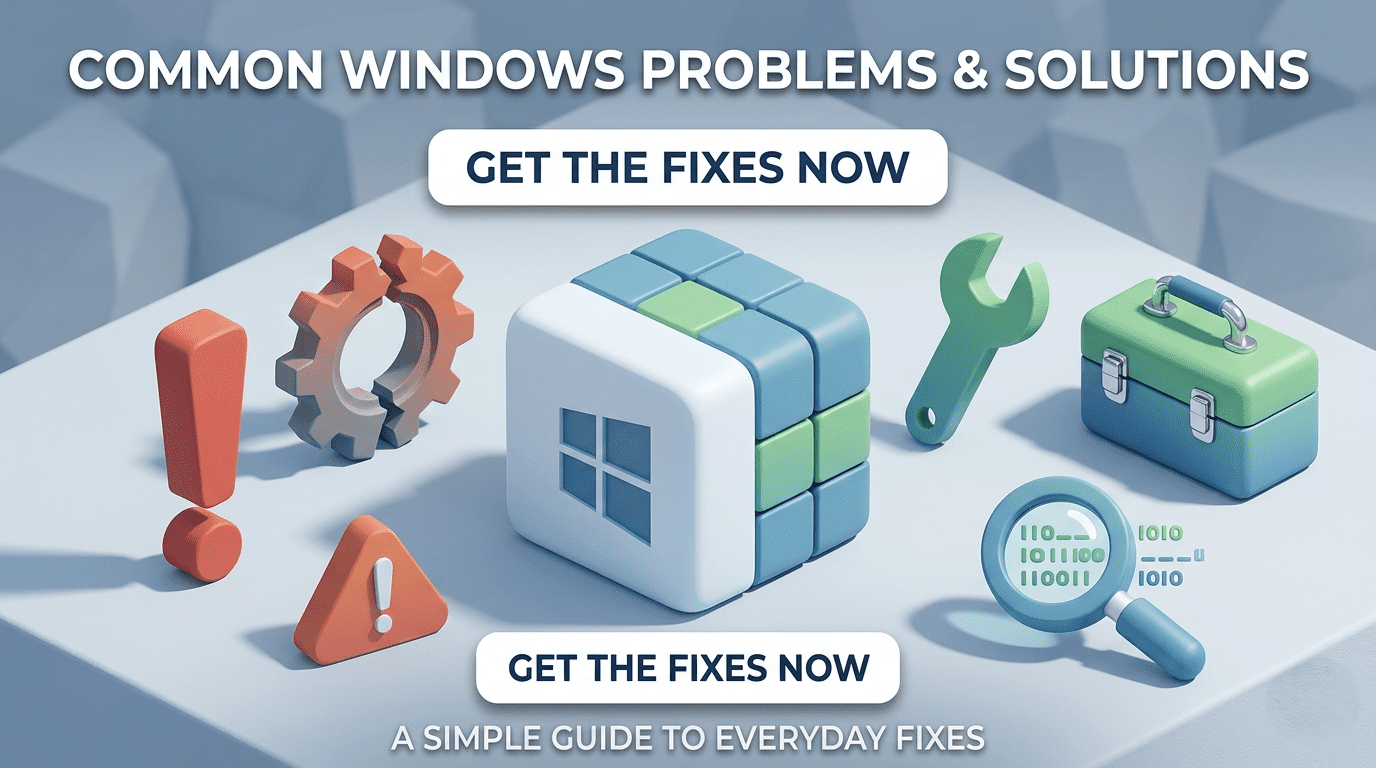
Microsoft Windows is one of the most widely used operating systems in the world. Whether you use your computer for work, study, gaming, or entertainment, you’re likely to encounter occasional technical issues. Problems such as slow performance, startup failures, internet connectivity issues, software crashes, and update errors can affect productivity and become frustrating.
The good news is that many common Windows problems can be resolved without advanced technical knowledge. By following a few simple troubleshooting steps, you can often restore your computer to normal operation.
This guide covers some of the most common Windows problems and their easy solutions.
1. Slow Computer Performance
Problem
Your computer takes a long time to start, applications open slowly, or multitasking feels sluggish.
Possible Causes
- Too many startup programs
- Low storage space
- Insufficient RAM
- Malware infection
- Outdated software
Easy Solutions
- Disable unnecessary startup applications.
- Delete temporary and unwanted files.
- Uninstall programs you no longer use.
- Scan your computer for malware.
- Restart your computer regularly.
- Upgrade to an SSD or add more RAM if needed.
2. Windows Won’t Start
Problem
Your computer doesn’t boot properly or gets stuck on the Windows logo.
Possible Causes
- Corrupted system files
- Failed updates
- Damaged boot files
- Hardware problems
Easy Solutions
- Disconnect external USB devices.
- Run Startup Repair from Windows Recovery.
- Boot into Safe Mode.
- Restore the system using a restore point.
- Check your storage drive for errors.
3. Wi-Fi Connected but No Internet
Problem
Your device connects to Wi-Fi, but websites and apps won’t load.
Possible Causes
- Router problems
- ISP outage
- Incorrect DNS settings
- Network configuration errors
Easy Solutions
- Restart your modem and router.
- Restart your computer.
- Forget and reconnect to the Wi-Fi network.
- Flush the DNS cache.
- Reset network settings if necessary.
4. Windows Update Errors
Problem
Windows updates fail to download or install.
Possible Causes
- Corrupted update files
- Low storage space
- Internet connection issues
Easy Solutions
- Restart your computer.
- Free up storage space.
- Run the Windows Update Troubleshooter.
- Retry the update after checking your internet connection.
- Install pending updates one at a time if necessary.
5. Blue Screen of Death (BSOD)
Problem
Your computer suddenly crashes and displays a blue error screen.
Possible Causes
- Faulty drivers
- Hardware failure
- RAM issues
- Corrupted system files
Easy Solutions
- Restart your computer.
- Update device drivers.
- Run Windows Memory Diagnostic.
- Check for Windows updates.
- Remove recently installed hardware or software if the problem started afterward.
6. Computer Keeps Freezing
Problem
Applications stop responding, or the entire system becomes unresponsive.
Possible Causes
- Overheating
- Low RAM
- Malware
- Software conflicts
Easy Solutions
- Close unnecessary programs.
- Check CPU and GPU temperatures.
- Scan for malware.
- Clean dust from cooling vents.
- Restart your computer.
7. No Sound from Speakers
Problem
Your speakers or headphones produce no sound.
Possible Causes
- Muted volume
- Incorrect playback device
- Driver issues
- Loose connections
Easy Solutions
- Check the system volume.
- Verify the correct playback device is selected.
- Restart the computer.
- Update audio drivers.
- Test with another speaker or headphone.
8. Bluetooth Not Working
Problem
Bluetooth devices fail to connect or disconnect frequently.
Possible Causes
- Disabled Bluetooth
- Outdated drivers
- Pairing issues
- Low battery
Easy Solutions
- Turn Bluetooth off and on again.
- Remove and pair the device again.
- Charge Bluetooth accessories.
- Update Bluetooth drivers.
- Restart both devices.
9. USB Device Not Recognized
Problem
Windows cannot detect your USB drive, mouse, keyboard, or other USB devices.
Possible Causes
- Faulty USB port
- Damaged cable
- Driver problems
- Device failure
Easy Solutions
- Try another USB port.
- Restart your computer.
- Update USB drivers.
- Test the device on another computer.
- Replace damaged cables if necessary.
10. Low Storage Space
Problem
Windows warns that your storage is almost full.
Possible Causes
- Large files
- Temporary files
- Duplicate data
- Unused applications
Easy Solutions
- Run Disk Cleanup.
- Delete temporary files.
- Uninstall unused software.
- Move files to external or cloud storage.
- Empty the Recycle Bin.
11. Applications Keep Crashing
Problem
Programs close unexpectedly or display error messages.
Possible Causes
- Corrupted application files
- Software bugs
- Outdated software
- Compatibility issues
Easy Solutions
- Restart the application.
- Update the software.
- Reinstall the application.
- Run it in compatibility mode if needed.
- Check for Windows updates.
12. Printer Not Working
Problem
The printer does not print or Windows cannot detect it.
Possible Causes
- Connection problems
- Outdated drivers
- Print queue errors
Easy Solutions
- Restart the printer.
- Check USB or Wi-Fi connections.
- Clear the print queue.
- Update printer drivers.
- Set the printer as the default device.
Tips to Keep Windows Running Smoothly
Following good maintenance habits can prevent many common problems.
Best Practices
- Keep Windows updated.
- Install trusted antivirus software.
- Restart your computer regularly.
- Back up important files.
- Remove unused programs.
- Keep at least 15–20% of your storage free.
- Update hardware drivers regularly.
- Clean dust from your computer to prevent overheating.
Frequently Asked Questions
Why does Windows become slow over time?
Windows may slow down due to accumulated temporary files, too many startup programs, malware, outdated software, or insufficient hardware resources.
Can restarting my computer solve many Windows problems?
Yes. Restarting clears temporary memory, stops unnecessary background processes, and often fixes minor software issues.
Should I update Windows regularly?
Yes. Regular updates improve security, fix bugs, and enhance system stability and performance.
When should I seek professional help?
If your computer experiences repeated hardware failures, won’t start despite troubleshooting, or suffers from physical damage, professional diagnosis is recommended.
Conclusion
Most Windows problems are easier to fix than many users realize. Issues such as slow performance, startup failures, internet connectivity problems, update errors, Bluetooth issues, and application crashes can often be resolved with simple troubleshooting steps. Regular maintenance, software updates, malware protection, and good storage management will keep your Windows computer running efficiently and reduce the chances of future problems.