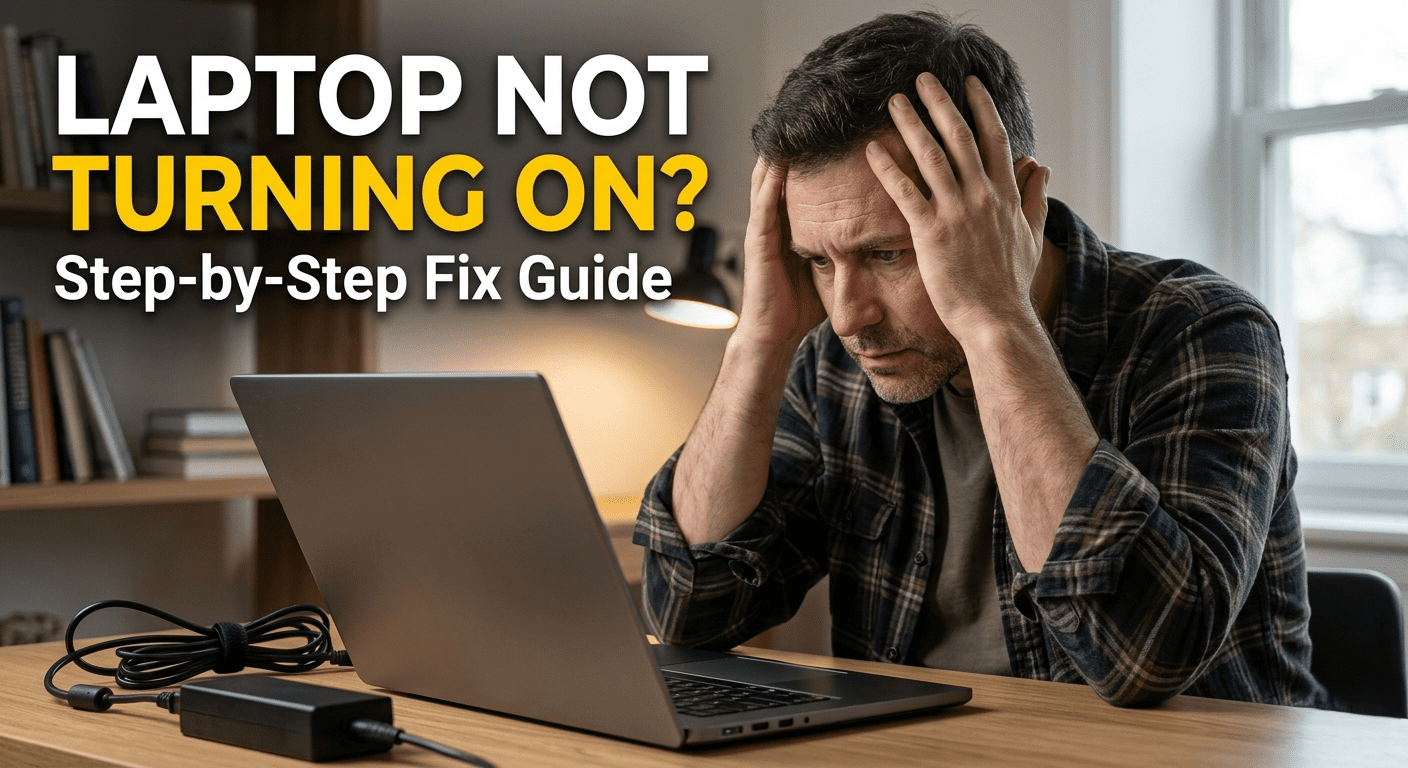
A laptop that won’t turn on can be alarming, especially if you rely on it for work, school, or personal tasks. Whether your laptop shows no signs of power, displays a black screen, or gets stuck during startup, the issue could be caused by something as simple as a drained battery or as serious as a hardware failure.
Fortunately, many startup problems can be fixed without replacing your laptop. This guide walks you through the most common causes and step-by-step solutions to get your laptop working again.
Common Symptoms
Before troubleshooting, identify the exact problem.
Your Laptop May:
- Show no power at all
- Display a black screen
- Turn on but not boot into Windows
- Show a blinking power light
- Make beeping sounds
- Turn on and shut off immediately
- Get stuck on the manufacturer’s logo
Knowing the symptoms helps narrow down the cause.
1. Check the Power Adapter
A faulty charger is one of the most common reasons a laptop won’t turn on.
Inspect:
- Power cable
- Charging adapter
- Connector pin
- Power outlet
Try This:
- Plug the charger into another wall socket.
- Check if the charging LED turns on.
- Use another compatible charger if available.
If the charger is defective, replacing it may solve the problem.
2. Check the Battery
Sometimes the battery is completely discharged or has failed.
Steps:
- Connect the charger.
- Wait at least 20–30 minutes.
- Try turning the laptop on again.
If your laptop has a removable battery:
- Remove the battery.
- Connect only the charger.
- Try powering on the laptop.
If it starts, the battery may need replacement.
3. Perform a Hard Reset
A hard reset can clear temporary hardware issues.
Steps:
- Turn off the laptop.
- Disconnect the charger.
- Remove the battery (if removable).
- Hold the Power button for 30–60 seconds.
- Reconnect the charger.
- Turn the laptop on.
This drains residual electrical charge and often resolves power-related issues.
4. Check the Display
Sometimes the laptop is running, but the display isn’t working.
Look For:
- Power indicator lights
- Fan noise
- Keyboard backlight
- Hard drive activity
Test:
- Increase screen brightness.
- Connect an external monitor using HDMI or DisplayPort.
If the external monitor works, the laptop screen or display cable may be faulty.
5. Disconnect External Devices
External devices can sometimes prevent a laptop from booting.
Disconnect:
- USB drives
- External hard drives
- Printers
- Memory cards
- USB hubs
- External monitors
After removing all peripherals, try turning the laptop on again.
6. Listen for Beep Codes
Some laptops produce beep sounds during startup.
Beep Codes Can Indicate:
- RAM problems
- Graphics card issues
- Motherboard faults
- Processor errors
Check your laptop manufacturer’s documentation to identify the meaning of the beep pattern.
7. Check for Overheating
Overheating can trigger automatic shutdowns.
Signs:
- Very hot bottom panel
- Loud cooling fan
- Laptop shuts down after a few seconds
Solution:
- Allow the laptop to cool for 20–30 minutes.
- Clean dust from air vents.
- Ensure proper airflow during use.
8. Reseat the RAM (Advanced Users)
Loose memory modules can prevent startup.
Steps:
- Turn off the laptop.
- Disconnect power.
- Remove the battery if possible.
- Open the RAM compartment.
- Remove and reinstall the RAM modules securely.
If multiple RAM sticks are installed, test one module at a time.
9. Check the Storage Drive
A failing SSD or HDD can stop Windows from loading.
Symptoms:
- Stuck on manufacturer logo
- “No Boot Device Found”
- Boot loop
- Clicking sounds (HDD)
If the drive has failed, replacing it and reinstalling the operating system may be necessary.
10. Boot into Safe Mode
If the laptop powers on but Windows doesn’t load properly:
Try Safe Mode
- Restart the laptop.
- Access the Windows Recovery Environment.
- Choose Startup Settings.
- Boot into Safe Mode.
Safe Mode allows you to remove problematic software or drivers.
11. Run Windows Startup Repair
Windows includes automatic repair tools.
Steps:
- Enter Windows Recovery.
- Select Troubleshoot.
- Choose Advanced Options.
- Click Startup Repair.
Windows will attempt to fix boot-related issues automatically.
12. Update BIOS (If Applicable)
In rare cases, an outdated BIOS may cause startup issues.
Important:
Only update the BIOS if:
- The laptop manufacturer recommends it.
- The update addresses your specific problem.
Interrupting a BIOS update can permanently damage the motherboard.
13. Inspect for Hardware Damage
Physical damage can prevent the laptop from powering on.
Check For:
- Liquid spills
- Burn marks
- Broken charging port
- Cracked motherboard
- Swollen battery
If physical damage is present, professional repair is recommended.
14. Reset or Reinstall Windows
If hardware is functioning but Windows is corrupted:
Options:
- Startup Repair
- System Restore
- Reset This PC
- Clean installation of Windows
Back up important files if possible before reinstalling.
15. Seek Professional Repair
If none of the above methods work, the issue may involve:
- Motherboard failure
- Power management chip
- Processor damage
- Charging circuit
- Internal short circuit
A qualified technician can diagnose and repair these hardware problems.
Tips to Prevent Startup Problems
Follow these best practices to reduce the risk of future issues:
- Use the original charger whenever possible.
- Keep your laptop updated.
- Avoid blocking cooling vents.
- Clean dust regularly.
- Protect your laptop from liquids.
- Shut down properly instead of forcing power off.
- Back up important data frequently.
- Use a surge protector to guard against power fluctuations.
Frequently Asked Questions
Why won’t my laptop turn on even when it’s plugged in?
Possible causes include a faulty charger, dead battery, damaged charging port, motherboard failure, or internal power issues.
Can a dead battery stop a laptop from turning on?
Yes. Some laptops cannot power on if the battery or charging system is faulty, even when connected to the charger.
Why is my laptop showing a black screen?
A black screen may be caused by display problems, graphics driver issues, faulty RAM, or hardware failure. Testing with an external monitor can help identify the issue.
Should I replace my laptop if it won’t turn on?
Not necessarily. Many startup issues are caused by batteries, chargers, RAM, or software problems that can be repaired at a much lower cost than buying a new laptop.
Conclusion
A laptop that won’t turn on doesn’t always require expensive repairs or replacement. Simple solutions such as checking the charger, performing a hard reset, testing the battery, disconnecting external devices, or repairing Windows can resolve many startup problems. If hardware components like the motherboard or storage drive have failed, professional diagnosis may be necessary. Regular maintenance and proper care can help prevent many power-related issues in the future.