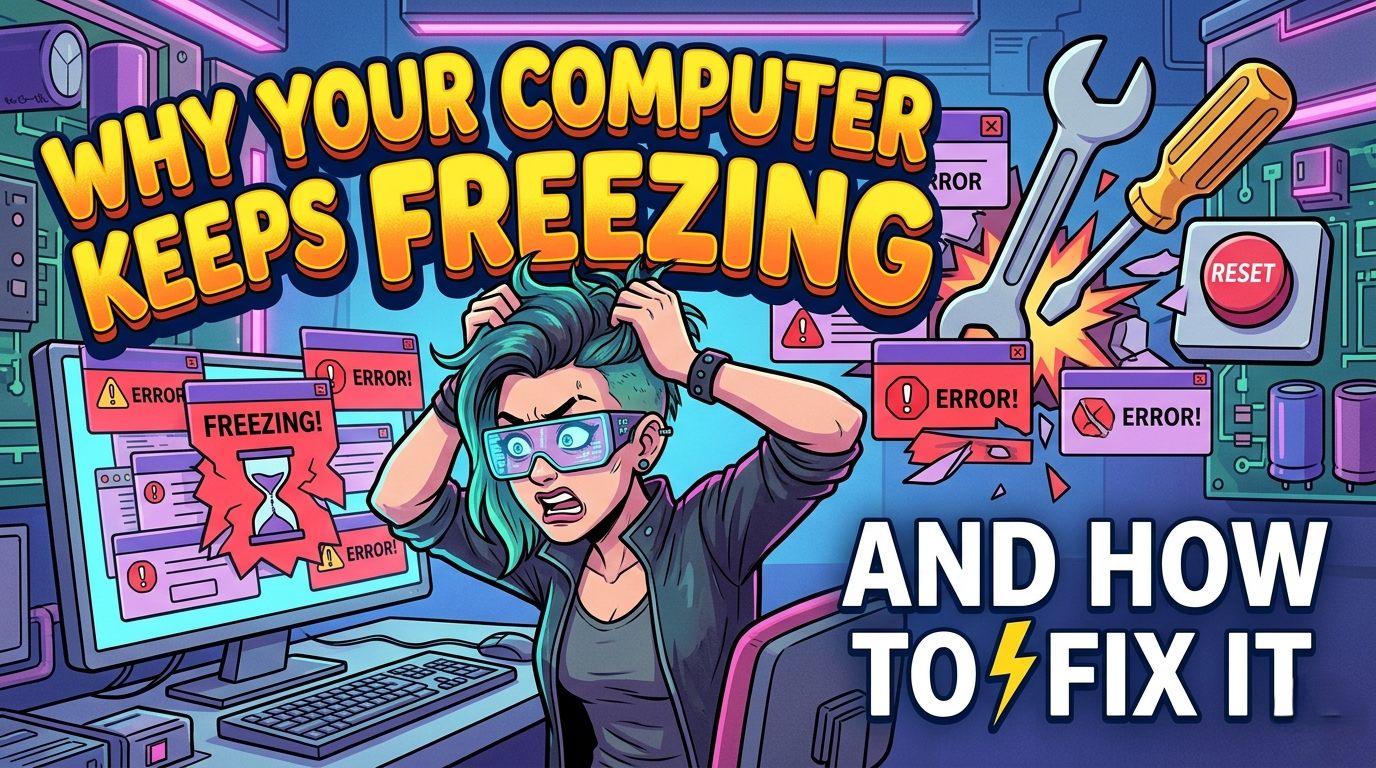
A computer that constantly freezes can interrupt your work, gaming, online meetings, or studies. Whether your screen becomes unresponsive, applications stop working, or the mouse cursor refuses to move, system freezes are a common issue that can affect both Windows PCs and Mac computers.
Computer freezing can happen for many reasons, including insufficient memory, overheating, outdated drivers, malware, software conflicts, or failing hardware. Fortunately, most freezing problems can be fixed by identifying the underlying cause and applying the correct solution.
This guide explains the most common reasons why your computer keeps freezing and provides practical methods to fix the problem.
Common Signs of a Freezing Computer
Before troubleshooting, recognize the symptoms of a system freeze.
Common Symptoms
- Mouse pointer stops moving
- Keyboard becomes unresponsive
- Programs stop responding
- Screen freezes for several seconds
- Frequent “Not Responding” messages
- Blue Screen of Death (Windows)
- Random restarts after freezing
These symptoms often indicate software or hardware problems.
1. Restart Your Computer
Temporary software glitches can cause occasional freezes.
Steps
- Save any open work if possible.
- Restart your computer.
- Check whether the issue continues.
A restart clears temporary memory and closes problematic background processes.
2. Check Available RAM
Running too many applications at once can exhaust your system memory.
Signs of Low RAM
- Slow application switching
- Browser tabs crashing
- Programs freezing frequently
Fix
- Close unused applications.
- Reduce the number of browser tabs.
- Upgrade your RAM if your computer frequently runs out of memory.
More available memory improves multitasking performance.
3. Free Up Storage Space
A nearly full storage drive can reduce system performance.
Delete
- Temporary files
- Old downloads
- Duplicate files
- Unused applications
- Large videos you no longer need
Keeping at least 15–20% of your drive free helps your operating system run smoothly.
4. Scan for Malware and Viruses
Malware can consume system resources and cause freezes.
Symptoms
- Slow performance
- Random pop-ups
- High CPU usage
- Browser redirects
Solution
Run a complete system scan using trusted antivirus software and remove any detected threats.
5. Update Your Operating System
Outdated system files can cause compatibility and stability issues.
Windows
- Open Settings
- Go to Windows Update
- Install available updates
Mac
- Open System Settings
- Select General
- Click Software Update
Keeping your operating system updated improves stability and security.
6. Update Device Drivers
Old or corrupted drivers often cause freezing.
Important Drivers to Update
- Graphics card
- Chipset
- Storage controller
- Network adapter
Download drivers from your computer or hardware manufacturer’s official website.
7. Check CPU and GPU Temperatures
Overheating forces your computer to reduce performance and may cause freezing.
Causes
- Dust buildup
- Faulty cooling fans
- Poor ventilation
- Heavy workloads
Solutions
- Clean air vents.
- Remove dust from fans.
- Use your laptop on a hard, flat surface.
- Consider a cooling pad for laptops.
Maintaining proper airflow helps prevent overheating.
8. Remove Unnecessary Startup Programs
Too many startup applications can overload your computer during boot.
Windows
- Press Ctrl + Shift + Esc
- Open Task Manager
- Select the Startup tab
- Disable unnecessary applications
This improves startup speed and overall system performance.
9. Check Your Hard Drive or SSD
Storage devices can develop errors over time.
Warning Signs
- Clicking noises from an HDD
- Slow file access
- Frequent freezes
- Missing files
Windows Disk Check
Open Command Prompt as Administrator and run:
chkdsk /fAllow Windows to scan and repair disk errors if prompted.
10. Remove Recently Installed Software
If freezing began after installing a new application, it may be causing conflicts.
Try This
- Uninstall the recently added software.
- Restart your computer.
- Monitor system performance.
If the freezing stops, reinstall an updated version or choose an alternative application.
11. Disable Unnecessary Background Programs
Some applications continue running even when closed.
Examples
- Cloud sync tools
- Messaging apps
- Update services
- RGB control software
Closing unnecessary background processes frees system resources.
12. Check for Hardware Problems
Faulty hardware can cause repeated freezes.
Components to Inspect
- RAM
- SSD or HDD
- Graphics card
- Power supply
- Motherboard
If you suspect hardware failure, professional diagnosis may be required.
13. Reset or Reinstall Your Operating System
If software corruption is severe, reinstalling the operating system may solve persistent freezing issues.
Before Reinstalling
- Back up important files.
- Save software license keys.
- Create installation media if necessary.
A clean installation removes corrupted system files and software conflicts.
Tips to Prevent Computer Freezing
Follow these habits to keep your computer running smoothly:
- Keep Windows or macOS updated.
- Install driver updates regularly.
- Use trusted antivirus software.
- Avoid installing unnecessary programs.
- Clean dust from your computer every few months.
- Keep sufficient free storage space.
- Restart your computer regularly.
- Back up important data.
Routine maintenance greatly reduces the risk of freezes.
Frequently Asked Questions
Why does my computer freeze randomly?
Random freezing is commonly caused by low RAM, overheating, outdated drivers, malware, failing storage devices, or software conflicts.
Can overheating cause computer freezes?
Yes. High CPU or GPU temperatures can cause your computer to slow down, freeze, or even shut down to prevent hardware damage.
How much free storage should I keep?
It’s recommended to keep at least 15–20% of your storage drive free for optimal performance.
Should I upgrade my RAM?
If your computer frequently freezes while multitasking or running modern applications, upgrading RAM can significantly improve performance.
Conclusion
A freezing computer is usually a sign of an underlying software or hardware issue rather than a permanent failure. By checking your RAM, freeing storage space, updating drivers, scanning for malware, monitoring temperatures, and maintaining your system regularly, you can resolve most freezing problems without replacing your computer. If the issue persists after trying these solutions, it may be time to inspect your hardware or seek professional technical assistance.