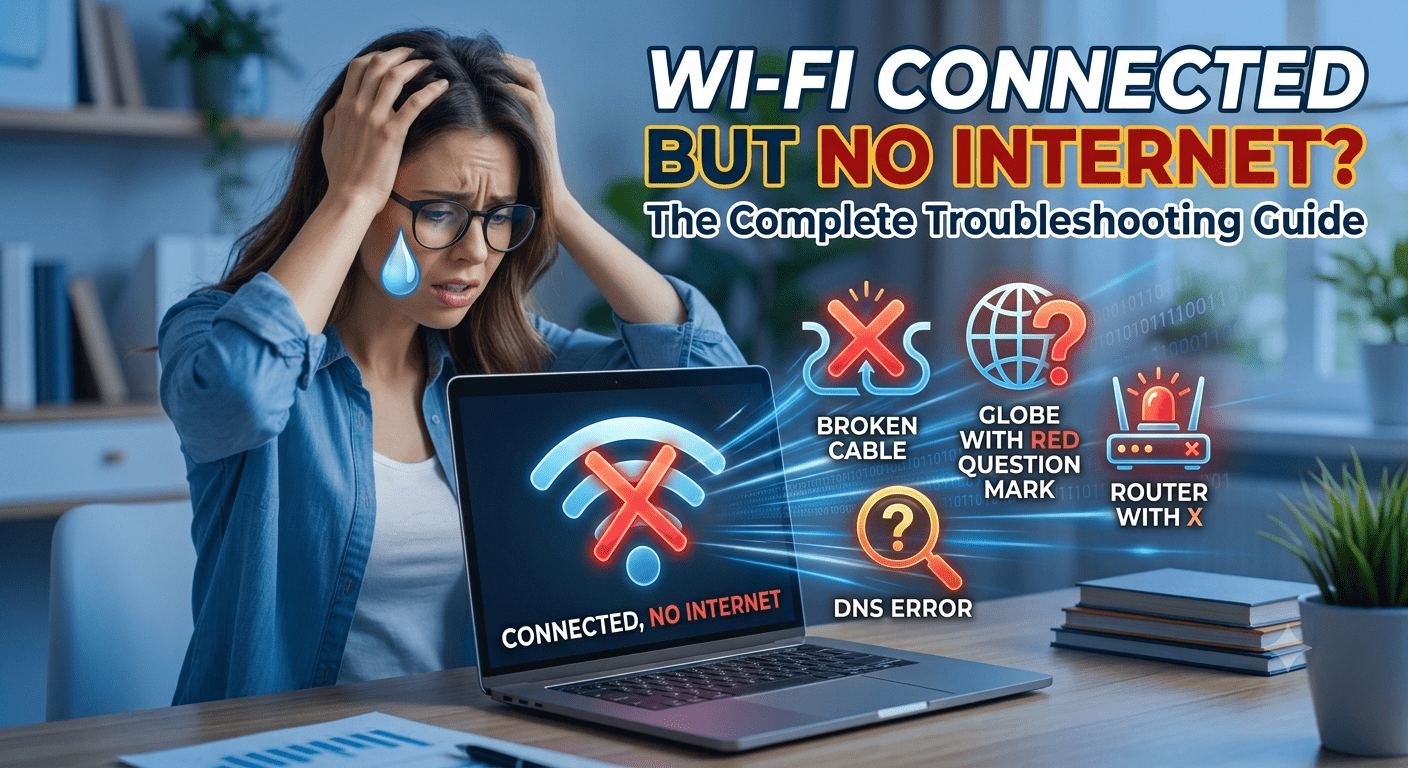
Few technical issues are as frustrating as seeing your device connected to Wi-Fi but being unable to access the internet. You may notice the Wi-Fi icon shows a successful connection, yet websites won’t load, apps remain offline, and streaming services stop working.
This problem can occur on Windows PCs, MacBooks, Android phones, iPhones, tablets, and smart TVs. Fortunately, most cases can be resolved without professional assistance.
In this guide, you’ll learn the most common causes of the Wi-Fi connected but no internet problem and the best ways to fix it.
What Does “Wi-Fi Connected but No Internet” Mean?
This message means your device has successfully connected to your wireless router, but the router cannot provide access to the internet.
Common Symptoms
- Wi-Fi icon shows connected
- Websites fail to load
- Apps display “No Internet”
- Online games disconnect
- Video streaming buffers continuously
- Windows displays “No Internet, Secured”
The issue may originate from your device, router, modem, or Internet Service Provider (ISP).
1. Restart Your Router and Modem
This is the simplest and most effective solution.
Steps
- Turn off your router and modem.
- Unplug both devices from power.
- Wait 30–60 seconds.
- Plug in the modem first.
- Wait until all indicator lights become stable.
- Turn on the router.
- Reconnect your device.
Why It Works
Restarting clears temporary network errors and establishes a fresh connection with your ISP.
2. Restart Your Device
Sometimes the issue exists only on your computer or smartphone.
Restart:
- Windows PC
- Mac
- Android phone
- iPhone
- Tablet
A reboot clears temporary networking issues and reloads system services.
3. Check Whether Your ISP Is Experiencing an Outage
Sometimes your internet provider is experiencing maintenance or technical issues.
How to Check
- Test another device on the same network.
- Ask neighbors using the same ISP.
- Contact your ISP.
- Check your ISP’s outage page or social media updates.
If there’s a service outage, you’ll need to wait until it’s resolved.
4. Forget the Wi-Fi Network and Reconnect
Saved network settings may become corrupted.
Windows
- Open Settings
- Go to Network & Internet
- Select Wi-Fi
- Choose your network
- Click Forget
- Reconnect using your password
Android & iPhone
- Open Wi-Fi settings
- Tap your network
- Select Forget Network
- Reconnect
5. Check Router Indicator Lights
Most routers use LED indicators to show network status.
Important Lights
- Power
- Internet/WAN
- Wi-Fi
- LAN
If the Internet light is red, orange, or flashing abnormally, the problem may be between the modem and your ISP.
6. Run Windows Network Troubleshooter
Windows includes automatic network diagnostics.
Steps
- Open Settings
- Navigate to System → Troubleshoot
- Select Other troubleshooters
- Run Network and Internet
Windows may automatically detect and repair common problems.
7. Renew Your IP Address
Sometimes your device receives an incorrect IP configuration.
Open Command Prompt as Administrator and run:
ipconfig /release
ipconfig /renew
Then refresh DNS:
ipconfig /flushdnsRestart your browser after completing these commands.
8. Change Your DNS Server
Slow or faulty DNS servers can prevent websites from loading.
Recommended Public DNS
Google DNS
- 8.8.8.8
- 8.8.4.4
Cloudflare DNS
- 1.1.1.1
- 1.0.0.1
Changing DNS often improves browsing speed and reliability.
9. Disable VPN or Proxy Services
VPNs and proxy servers sometimes interfere with internet connectivity.
Try This
- Disconnect VPN
- Disable proxy settings
- Restart Wi-Fi
If the connection works afterward, review your VPN configuration.
10. Update Network Drivers
Old or damaged Wi-Fi drivers can cause internet issues.
Windows
- Open Device Manager
- Expand Network Adapters
- Right-click your Wi-Fi adapter
- Select Update Driver
Restart your computer after updating.
11. Reset Network Settings
Resetting network settings removes incorrect configurations.
Windows
Go to:
Settings → Network & Internet → Advanced Network Settings → Network Reset
Android
Settings → System → Reset → Reset Network Settings
iPhone
Settings → General → Transfer or Reset iPhone → Reset → Reset Network Settings
12. Check for Malware
Certain malware programs interfere with internet access.
Scan Your Computer
- Windows Security
- Malwarebytes
- Bitdefender
- Avast
Remove detected threats and restart your computer.
13. Update Router Firmware
Router manufacturers regularly release firmware updates.
Benefits
- Better stability
- Improved security
- Faster performance
- Bug fixes
Check your router manufacturer’s website for the latest firmware.
14. Reduce Network Congestion
Too many connected devices can slow your internet.
Disconnect
- Idle phones
- Smart TVs
- Gaming consoles
- File downloads
- Cloud backups
Reducing network traffic improves overall performance.
15. Contact Your Internet Service Provider
If none of the above solutions work, contact your ISP.
Provide:
- Router model
- Error messages
- Time the issue started
- Devices affected
Your ISP can check line quality, account status, and outages.
Tips to Prevent Future Internet Problems
Follow these best practices:
- Restart your router once every week.
- Update router firmware regularly.
- Keep Windows and mobile devices updated.
- Use strong Wi-Fi passwords.
- Place your router in a central location.
- Avoid interference from microwaves and cordless phones.
- Regularly scan for malware.
- Replace aging routers every 4–6 years.
Frequently Asked Questions
Why does my Wi-Fi say connected but websites won’t open?
Your device is connected to the router, but the router cannot access the internet. This may be due to ISP outages, DNS issues, incorrect IP settings, or router problems.
Can restarting the router fix the problem?
Yes. Restarting the modem and router fixes many temporary connection issues by refreshing the network connection.
Should I reset my network settings?
Yes, if basic troubleshooting fails. A network reset restores default settings and often resolves persistent connectivity problems.
Can malware cause internet issues?
Yes. Malware can interfere with network settings, redirect traffic, or block internet access. Running a trusted antivirus scan is recommended.
Conclusion
The Wi-Fi connected but no internet problem is one of the most common networking issues, but it is usually easy to fix. Restarting your router, renewing your IP address, changing DNS servers, updating drivers, and checking for ISP outages can solve most connectivity problems. By following the troubleshooting steps in this guide and maintaining your network regularly, you can enjoy a faster, more stable, and reliable internet connection.