
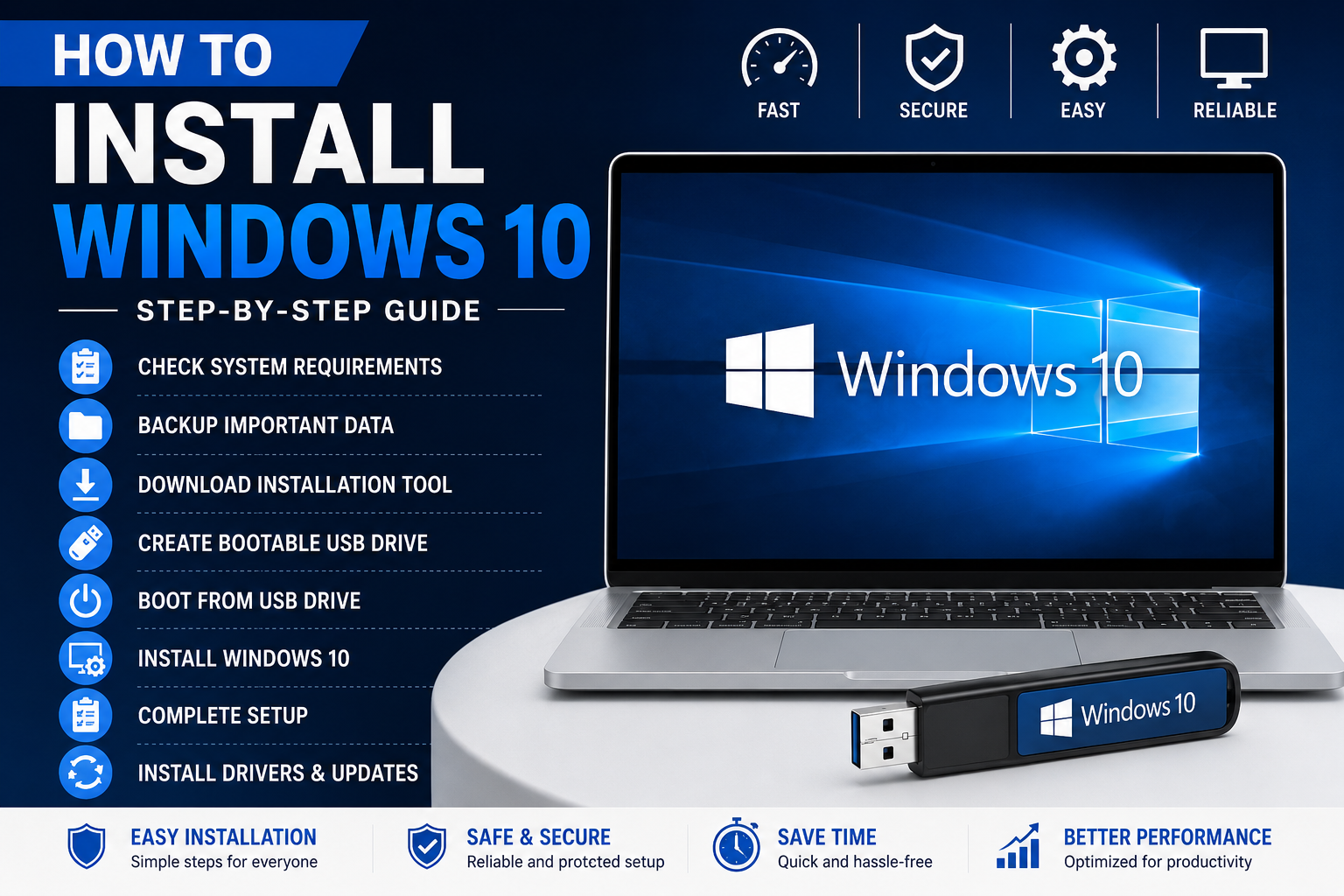
Installing Windows 10 is a simple process if you follow the correct steps. Whether you are upgrading your current system or performing a fresh installation, this guide will help you install Windows 10 safely and smoothly.
Check System Requirements
Before installing Windows 10, make sure your PC meets these requirements:
- 1 GHz processor or faster
- 2 GB RAM or more
- 20 GB free storage space
- DirectX 9 graphics device
- Internet connection
A compatible system ensures better performance after installation.
Backup Important Data
Before starting the installation, back up your important files such as:
- Photos
- Documents
- Videos
- Software files
You can save them to a USB drive, external hard disk, or cloud storage.
Download Windows 10 Installation Tool
To install Windows 10, you need a bootable USB drive.
Steps:
- Visit the official Microsoft Windows 10 Download Page
- Download the Media Creation Tool.
- Insert an empty USB drive with at least 8 GB storage.
- Run the tool and select Create Installation Media.
- Follow the on-screen instructions to create the bootable USB.
Boot From USB Drive
- Insert the bootable USB into your PC.
- Restart the computer.
- Open the Boot Menu using keys like F12, ESC, or DEL.
- Select the USB drive from the list.
The Windows 10 setup screen will appear.
Install Windows 10
Follow these steps carefully:
- Select your language and keyboard settings.
- Click Install Now.
- Enter your product key or choose Skip.
- Select the Windows 10 version.
- Accept the license agreement.
- Choose:
- Upgrade to keep files and apps
- Custom Install for a fresh installation
- Select the installation drive.
- Click Next to begin installation.
Your computer may restart several times during the process.
Complete Windows Setup
After installation:
- Connect to Wi-Fi
- Sign in with your Microsoft account
- Create a password or PIN
- Adjust privacy settings
Once setup is complete, Windows 10 will open on your desktop.
Install Drivers and Updates
To improve performance and security:
- Open Settings
- Go to Update & Security
- Click Windows Update
- Install all available updates
This ensures your system runs smoothly and securely.
Final Thoughts
Installing Windows 10 is easy when you follow the proper steps. Creating a bootable USB drive and carefully completing the setup process will help you enjoy a stable and fast operating system. Always keep your files backed up before starting the installation.